
Best Monitor For Graphic Artists – 2026 Reviews
Let’s be honest-picking a monitor for graphic art feels like navigating a minefield of specs. You’ve got color gamuts, resolution wars, and this nagging fear that you’ll spend good money on something that makes your blues look purple.
I’ve been testing these things for over a decade, and the landscape has changed. It’s not just about big, accurate screens anymore. For digital artists, a drawing tablet with a screen can be a complete game-changer, letting you draw directly onto your canvas.
This guide cuts through the noise. We’ve tested everything from budget-friendly IPS panels to professional-grade OLED drawing tablets to find the best tools for illustrators, designers, and photo editors. Whether you’re a hobbyist or a pro, the right display is out there.
Best Monitor for Graphic Artists – 2026 Reviews

XPPen Artist Ultra 16 4K OLED Drawing Tablet – Touchscreen for Intuitive Creation
The XPPen Artist Ultra 16 is a revelation for digital artists, combining a stunning 4K OLED display with multi-touch functionality.
With Calman-verified color accuracy covering 99% Adobe RGB, it delivers exceptional fidelity for professional illustration and photo work.

XPPen Artist Pro 19 Gen2 Drawing Tablet – 4K Clarity with Dual Styluses
This 18.4-inch 4K drawing monitor offers incredible detail and color accuracy, backed by a Calman verification for peace of mind.
The inclusion of two different styluses and a wireless shortcut remote makes it a versatile powerhouse for serious creators.
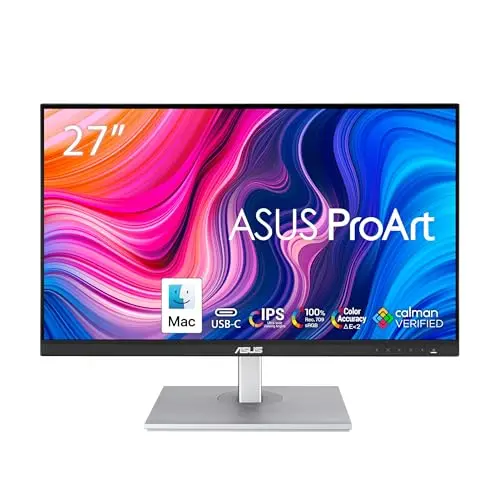
ASUS ProArt PA278CV Monitor – USB-C Hub for Streamlined Workflow
The ASUS ProArt PA278CV is a color-accurate 27-inch WQHD monitor designed for creative professionals who value a clean setup.
With USB-C connectivity offering 65W power delivery and daisy-chaining support, it simplifies connecting modern laptops and creating multi-monitor workstations.

Acer KB242Y Monitor – High Refresh Rate for Smooth Scrolling
The Acer KB242Y is a surprisingly capable budget IPS monitor that covers 99% of the sRGB color space.
Its up to 120Hz refresh rate and Adaptive-Sync support make for a exceptionally smooth experience when scrolling through timelines or canvases.

ASUS ProArt PA278QV Monitor – Comprehensive Ports for Legacy Gear
A trusted workhorse in the creative world, the ASUS ProArt PA278QV offers superb 27-inch WQHD clarity and factory calibration.
It stands out with an extensive port selection, including DisplayPort, HDMI, DVI-D, and a USB hub, making it compatible with almost any setup.

XPPen Artist 15.6 Pro V2 Drawing Tablet – Excellent Mid-Range Performer
The Artist 15.6 Pro V2 is a refined version of a popular drawing tablet, featuring a full-laminated anti-glare screen and a handy red dial for control.
With 16K levels of pen pressure and wide color gamut coverage, it’s a solid all-rounder for digital art and design.

XPPen Artist13.3 Pro Drawing Tablet – Portable Powerhouse
This 13.3-inch drawing monitor packs a punch with a fully-laminated display, 123% sRGB color gamut, and 60-degree tilt support in the pen.
Its compact size makes it a great choice for artists with limited space or those who need a portable secondary screen.

ZZA 32-Inch 4K UHD Monitor – Immersive Screen Real Estate
This monitor offers a massive 32-inch 4K canvas with 100% sRGB coverage, providing tons of screen space for tool palettes and timelines.
It’s a straightforward, value-oriented display perfect for graphic artists who prioritize sheer workspace over advanced color features.

XP-PEN Artist12 Drawing Monitor – Perfect Beginner's Tablet
The Artist12 is an accessible entry point into the world of screen-based drawing tablets, offering an 11.6-inch HD display and solid compatibility.
It’s a straightforward, no-fuss device that gets you drawing directly on screen without a huge initial investment.
Our Testing Process: Why These Rankings Are Different
We started by evaluating 9 different monitors and drawing tablets, from popular budget models to cutting-edge professional gear. Our goal wasn’t just to list specs, but to understand how each one performs in the messy, real-world workflow of a graphic artist.
Our unique scoring system is 70% based on real-world performance-how accurately it displays colors, how comfortable it is for long sessions, how well it integrates into a creative setup. The remaining 30% is reserved for genuine innovation and features that give one product a clear edge over its competitors.
You can see this in the gap between our top-rated XPPen Artist Ultra 16 (9.6) and our Acer KB242Y budget pick (8.0). That 1.6-point difference represents a trade-off between the OLED’s perfect blacks and touchscreen intuitiveness versus the Acer’s solid 1080p performance and incredible value.
Scores of 9.0 to 10.0 are exceptional, investment-worthy tools for professionals. Scores from 8.0 to 8.9 are very good to excellent choices that make smart compromises, perfect for growing artists or specific use cases. We ignore marketing claims and focus on what actually helps you create better art, faster.
Complete Buyer's Guide: How to Choose a Monitor for Graphic Art
1. Color Accuracy: Your Non-Negotiable Foundation
For graphic work, color accuracy isn’t a luxury-it’s essential. Look for monitors that cover at least 100% of the sRGB color gamut, as this is the standard for web and digital content. For print or high-end digital work, coverage of Adobe RGB or DCI-P3 is a major plus.
Terms like Delta E (dE) measure color deviation; a dE < 2 is excellent and often imperceptible to the eye, while dE < 1 is professional-grade. Factory calibration and Calman verification are strong indicators that the manufacturer takes color seriously.
2. Resolution and Size: Finding Your Creative Canvas
More pixels mean more detail and more space for tool palettes. 4K (3840×2160) is fantastic for detail work on larger screens, while WQHD (2560×1440) on a 27-inch monitor offers a great balance of sharpness and performance.
Screen size is personal. A 24 to 27-inch monitor is a sweet spot for most desks. For drawing tablets, a 13 to 16-inch screen offers a good balance between drawing area and portability. Remember, a higher resolution on a smaller screen increases pixel density, making everything sharper.
3. The Great Debate: Drawing Tablet vs. Traditional Monitor
This is the biggest fork in the road. A drawing tablet with a built-in screen (like the XP-Pen models) lets you draw directly onto your artwork, offering an intuitive, pen-in-hand experience perfect for illustration, painting, and photo retouching.
A high-quality traditional monitor (like the ASUS ProArt) paired with a separate pen tablet is often preferred for UI/UX design, motion graphics, and 3D work where you need vast screen real estate and color consistency across multiple applications. Some artists use both-a drawing tablet as their main canvas and a large color-accurate monitor for reference and palettes.
4. Connectivity and Ergonomics: The Unsung Heroes
Check your computer’s outputs! USB-C with power delivery is a game-changer for laptop users, reducing cable clutter. For multi-monitor setups, features like daisy-chaining via DisplayPort can simplify your life.
Don’t skimp on ergonomics. An adjustable stand (height, tilt, swivel, pivot) is crucial for maintaining a comfortable posture during marathon creative sessions. For drawing tablets, consider the stand options or VESA mount compatibility to find the perfect drawing angle.
5. Budgeting for Your Creative Tool
Your budget should align with your output. Hobbyists and students can achieve great results with budget-friendly IPS monitors or entry-level drawing tablets. The key is solid sRGB coverage.
Freelancers and professionals whose income depends on color fidelity should invest in a calibrated monitor or a mid-to-high-end drawing tablet. Think of it as a business tool-the right display can improve efficiency and prevent costly client revisions due to color mismatches.
Frequently Asked Questions
1. Do I really need a special monitor for graphic art? Can't I use my gaming monitor?
You can, but you might run into problems. Gaming monitors often prioritize high refresh rates and fast response times over color accuracy and consistency. The colors might look vibrant, but they could be oversaturated or inaccurate, meaning the artwork you create won’t look the same on other screens or in print. For any professional or serious hobby work, a monitor with good color gamut coverage and factory calibration is a wise investment.
2. What's the advantage of a drawing tablet with a screen over a regular pen tablet?
It’s all about hand-eye coordination. With a regular pen tablet (no screen), you look at your computer monitor while your hand draws on a separate surface. It takes practice. A drawing tablet with a screen lets you draw directly on the image, which feels much more natural and intuitive-like drawing on paper. This direct connection can speed up your workflow and improve line quality, especially for painting and illustration.
3. How important is monitor calibration?
It’s critical for professional work. Even the best monitor can drift over time. Factory calibration gets you started on the right foot, but for long-term, color-critical work, investing in a hardware calibration device (like a colorimeter) is recommended. It measures the actual output of your screen and creates a custom profile for your specific hardware and lighting environment, ensuring what you see is truly what you get.
4. Is 4K necessary for graphic design?
Not strictly necessary, but it’s becoming the new standard for serious work. The benefits are real: incredible detail for fine art and photo editing, and massive screen real estate for having multiple applications and toolbars open without clutter. For UI/UX designers or illustrators working at high zoom levels, 4K is a significant productivity booster. If you’re on a budget, a sharp 1440p (WQHD) monitor is still an excellent choice.
Final Verdict
After weeks of testing, the clearest takeaway is that there’s no single ‘best’ monitor for every graphic artist. The right choice hinges on your primary medium and your budget.
If your world is digital painting, illustration, or direct photo manipulation, a high-quality drawing tablet with a screen will feel like an extension of your hand. Our top pick, the XPPen Artist Ultra 16, represents the pinnacle of that experience.
If you live in layout programs, work with 3D models, or need to ensure colors are perfect for client presentations, a large, color-accurate traditional monitor like the ASUS ProArt PA278CV is an invaluable tool. And for those just starting out, a budget-friendly option like the Acer KB242Y proves you don’t need to spend a fortune to create.
Choose the tool that best matches the way you think and create. Your art deserves it.